
Site supporters can change the colors and fonts of their author profile and of each character profile. This guide shows exactly what each setting changes, what it replaces, and how to undo it.
The short, calming version:
- Nothing is permanent. One button (Reset all to site defaults) puts everything back the way it was.
- Nothing changes until you click Save.
- It only changes how that one profile page looks. It does not touch your posts, stories, messages, followers or anything else.
- Your author profile and each of your characters are separate. Changing one never changes another.
The basics
Who can use it
The Custom Profile Colors and Fonts section is available to site supporters. If you are a supporter you will see it on your edit pages. If you are not, the section simply is not shown (nothing is broken). You can learn more on the Support the Site page.
Where to find it
For your author profile:
- Open your author profile.
- Click the pencil icon in the top right corner of your header image. The Edit Profile page opens.
- Scroll down to the section called Custom profile colors and fonts. It sits below the Images section and above the Custom content section.
- Make your changes, then click Save Changes at the bottom of the page.
For a character profile:
- Open the character’s profile (Dashboard → My Characters → the character).
- Click the pencil icon in the top right corner of the header image. The Edit a Character page opens.
- Scroll down to Custom profile colors and fonts (below Images, above Custom content).
- Make your changes, then click Save character at the bottom of the page.
The same section also appears when you create a new character. It does not appear during the very first author setup, only once your author profile exists.
What the form looks like
Each color has two ways to set it: a small color box (click it to open your browser’s color picker) and a text box next to it where you can type or paste a hex code. The two stay in step with each other. Fonts are menus grouped by mood: click one and pick a font, or type part of its name to search. The question-mark icon next to each setting shows a short reminder of what it replaces.
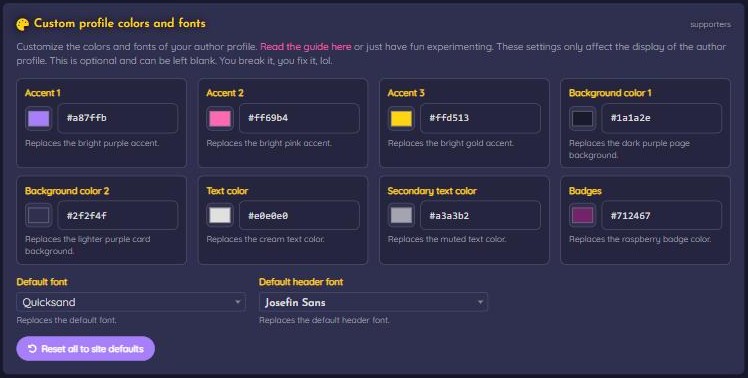
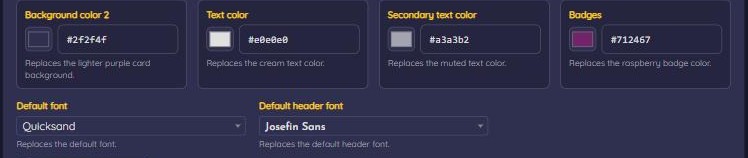
The character form has the identical section:
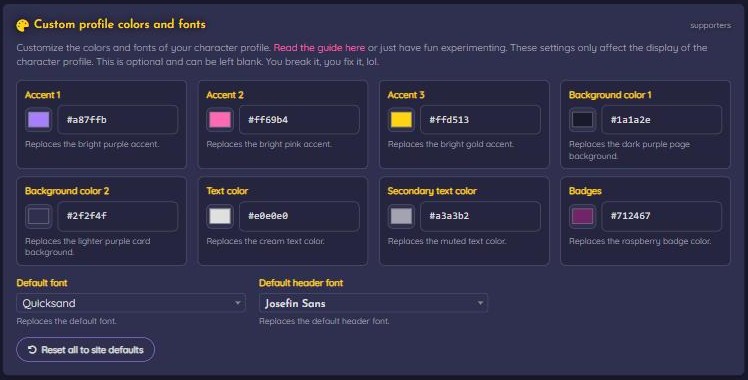
The ten settings
There are 8 colors and 2 fonts. When a box shows the site’s own default, that is what your profile already looks like.
- Accent 1, Accent 2, Accent 3: the three bright “highlight” colors.
- Background Color 1 and Background Color 2: the dark backdrop and the lighter boxes on top of it.
- Text Color and Secondary Text Color: the main text and the small supporting text.
- Badges: the little count bubbles.
- Default Font and Default Header Font: regular text and headings.
The parts of a profile (the names this guide uses)
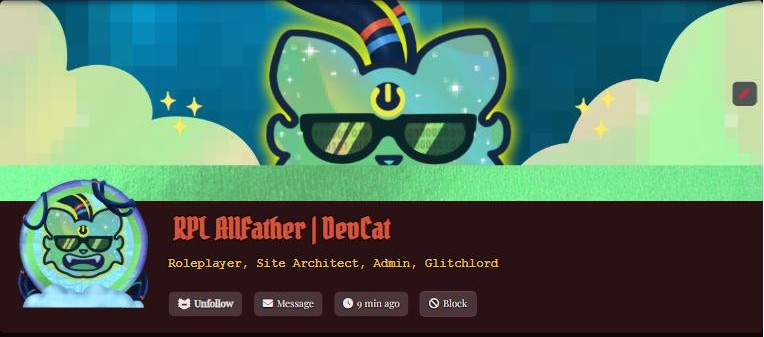
- Header card: the area with your picture, name and tagline, below the big header image.
- Tab bar: the row of tabs (Info, Feed, Followers Only, and so on).
- Info area: the content under the tabs.
- Action buttons: the small buttons in the header card, such as Message and the “last active” time.
- Count bubbles: the little rounded pills with numbers and dates under the row of icons.
- Profile picture ring: the colored circle around the profile picture.
What always stays the same
These keep the normal site look no matter what you pick:
- The site’s top bar and menus, and the footer.
- Your dashboard, feeds, messages, settings and every other page.
- Other people’s profiles (you only ever restyle your own).
- Your header image and profile picture themselves. Only the colored ring around the profile picture can change.
- The font and size of the tagline under your name (only its color follows Accent 3).
- The soft dark shadow the site adds behind headings, tab and button labels, the tagline and the small stat boxes so text stays readable on any background. It does not change with your colors.
- The edit pages (including this form), so you can always read them while experimenting.
Who sees your choices
Everyone who visits that profile sees the colors and fonts you saved for it.
What happens when you click Save
When you click Save, whatever is showing in all ten settings is saved, including the ones you did not touch. That is fine: an untouched box shows the site’s own default, so saving it looks the same as before. You do not need to change every box.
Two tips so things stay readable
- Text Color is written on top of Accent 1, Accent 2 and Accent 3. It is the label on the selected tab (with Accent 1 behind it), on a tab you hover over (with Accent 3 behind it), on the action buttons, and on the New Post and New Story buttons, which fade from Accent 2 into Accent 1. Choose a Text Color that contrasts with all three accents, so those labels stay easy to read. After you save, look at the selected tab, hover over another tab, and check the New Post button.
- Make sure your colors contrast with each other. Accent 2 has to stand out as a heading color against your boxes and also work as a backdrop for your Text Color on the New Post and New Story buttons. Accent 3 has to work both as the ring and tagline color and as a backdrop for your Text Color on hovered tabs, so it is worth checking each pairing after you save.
Only solid colors are possible (no gradients, no see-through colors). The picker saves a standard six-digit color code such as #1894ec.
Author profiles: what replaces what
These settings are saved on your author profile only. They do not change any of your characters.
| Setting on the form | What it replaces (site default) | Where it changes on your author profile |
|---|---|---|
| Accent 1 | #a87ffbbright purple | Link text. The edit pencil. The solid color behind the selected tab (and behind any button or count bubble you hover over); the label on top of it stays your Text Color. It is also one end of the color blend on the New Post and New Story buttons. Not the text on the action buttons (that is Text Color) and not the ring around your profile picture (that is Accent 3). |
| Accent 2 | #ff69b4bright pink | Headings: your author name at the top and section headings such as “About the Author”. Also the color a link turns when you hover over it. It is also the outline color of the sort/filter boxes above your lists of posts and stories, and the other end of the color blend on the New Post and New Story buttons. |
| Accent 3 | #ffd513gold | The ring around your author profile picture, and the tagline under your name (the color only; the tagline keeps its own font). It is also the solid color behind any other tab when you hover over it; the label stays your Text Color. |
| Background Color 1 | #1a1a2edark navy-purple | The page background behind your profile, and the thin gaps you can see between the boxes. It is also the fill of the sort/filter drop-downs above the lists of posts and stories, and of the rows in the list (browse) views of posts and stories. |
| Background Color 2 | #2f2f4flighter purple | The boxes themselves: the header card with your name and picture, the tab bar, and the area under the tabs. The buttons, tabs and count bubbles use a slightly lighter tint of this color so they stand out from the box they sit on. The individual post and story cards in the lists also use this lighter tint, and the small strip that holds the sort/filter drop-down uses the plain color. |
| Text Color | #e0e0e0soft off-white | Your regular profile text (Status, Genres, Fandoms, and so on). It is also the label on every tab (including the selected one), the text and icons on the action buttons (Message, “last active”), the text inside your post and story cards, the text in the sort/filter drop-downs, and the label on the New Post and New Story buttons. |
| Secondary Text Color | #a3a3b2muted grey-lavender | The small numbers and dates inside the count bubbles under the icons. |
| Badges | #712467raspberry | The background of the count bubbles (the little pills with numbers and dates under the icons). |
| Default Font | Quicksand | All regular text on your author profile, including the labels on the tabs, the text in post and story cards, and the sort/filter drop-downs. |
| Default Header Font | Josefin Sans | Headings on your author profile (your author name and section headings). |
Before and after: an author profile
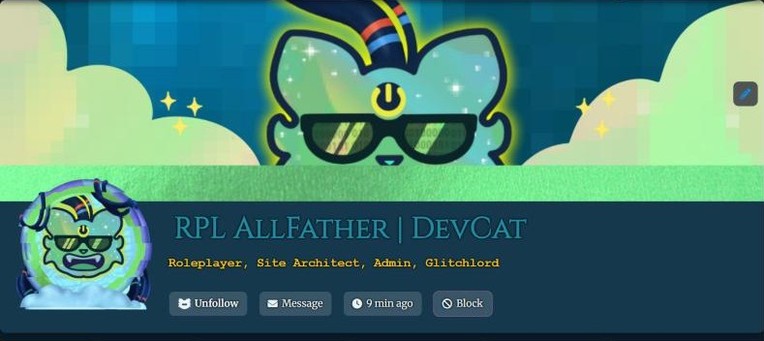
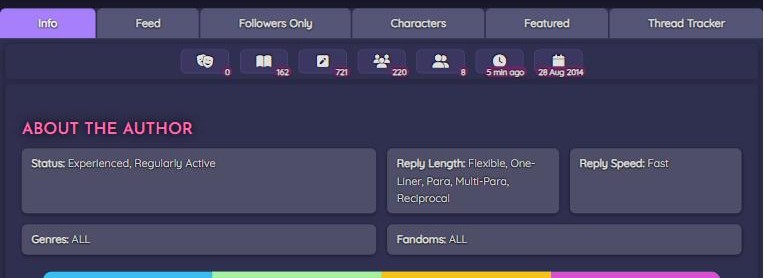
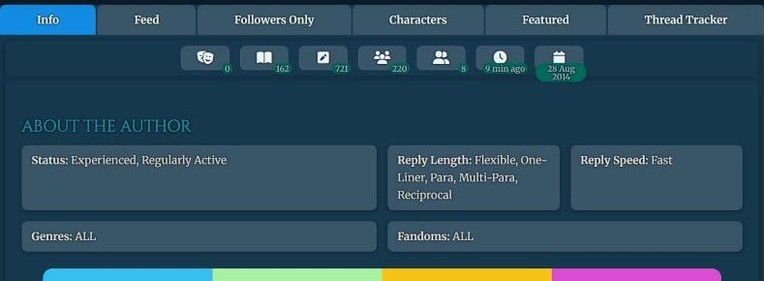
Left: the site default. Right: the same profile with the Ocean Depths sample scheme (all ten values are listed in the sample schemes section below).
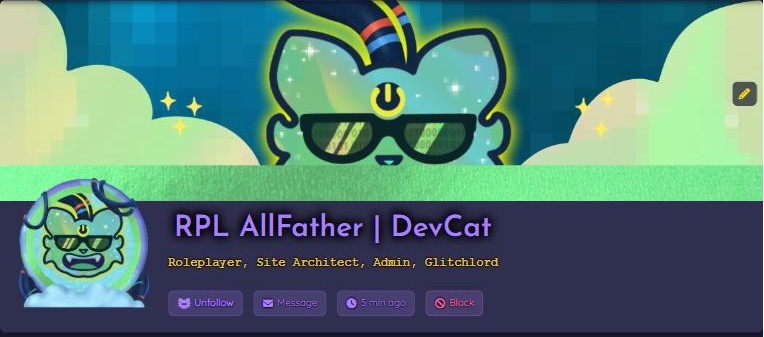
Character profiles: what replaces what
Every character has its own set of ten settings. Customizing one character never changes another character or your author profile, and customizing your author profile never changes your characters.
The settings work the same way on author and character profiles. On both, the ring around the profile picture is Accent 3.
| Setting on the form | What it replaces (site default) | Where it changes on a character profile |
|---|---|---|
| Accent 1 | #a87ffbbright purple | Link text. The edit pencil. The solid color behind the selected tab (and behind any button or count bubble you hover over); the label on top of it stays the Text Color. It is also one end of the color blend on the New Post and New Story buttons. Not the text on the action buttons (that is Text Color) and not the ring around the profile picture (that is Accent 3). |
| Accent 2 | #ff69b4bright pink | Headings: the character name at the top and section headings. Also the color a link turns when you hover over it. It is also the outline color of the sort/filter boxes above your lists of posts and stories, and the other end of the color blend on the New Post and New Story buttons. |
| Accent 3 | #ffd513gold | The ring around the character’s profile picture, and the tagline under the name (the color only; the tagline keeps its own font). It is also the solid color behind any other tab when you hover over it; the label stays your Text Color. |
| Background Color 1 | #1a1a2edark navy-purple | The page background behind the profile, and the thin gaps you can see between the boxes. It is also the fill of the sort/filter drop-downs above the lists of posts and stories, and of the rows in the list (browse) views of posts and stories. |
| Background Color 2 | #2f2f4flighter purple | The boxes themselves: the header card with the name and picture, the tab bar, the area under the tabs, and the character info area. Buttons, tabs and count bubbles use a slightly lighter tint of this color. The individual post and story cards in the lists also use this lighter tint, and the small strip that holds the sort/filter drop-down uses the plain color. |
| Text Color | #e0e0e0soft off-white | The regular profile text (Type, Gender, Species, Fandoms, and so on). It is also the label on every tab (including the selected one), the text and icons on the action buttons (Message, “last active”, the author button), the text inside the post and story cards, the text in the sort/filter drop-downs, and the label on the New Post and New Story buttons. |
| Secondary Text Color | #a3a3b2muted grey-lavender | The small numbers and dates inside the count bubbles under the icons. |
| Badges | #712467raspberry | The background of the count bubbles (the little pills with numbers and dates under the icons). |
| Default Font | Quicksand | All regular text on the character profile, including the labels on the tabs, the text in post and story cards, and the sort/filter drop-downs. |
| Default Header Font | Josefin Sans | Headings on the character profile (the character name and section headings). |
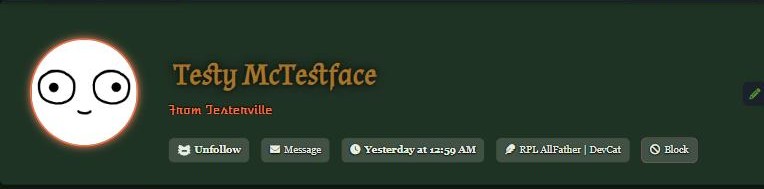
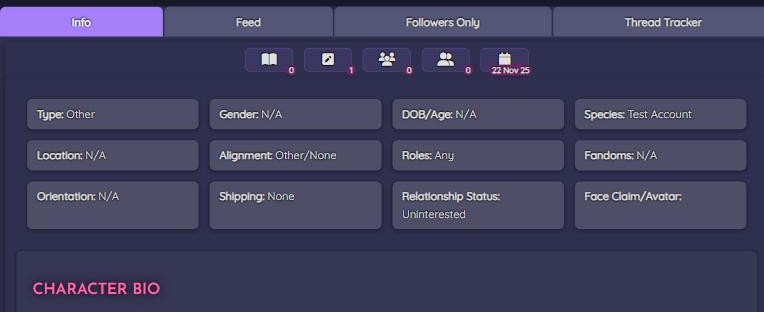
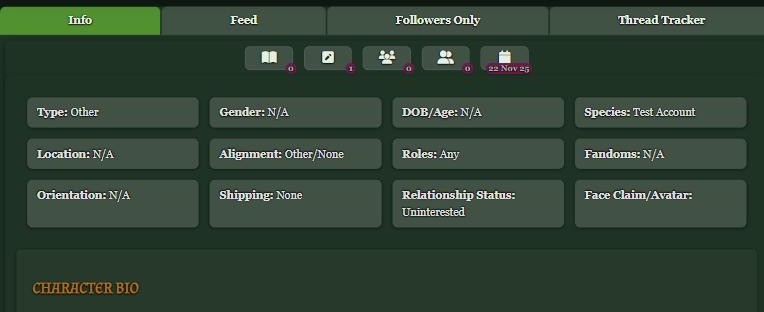
Before and after: a character profile
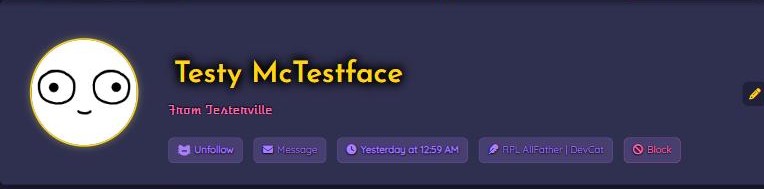
Left: the site default. Right: the same character with the Forest Witch sample scheme.
Sample color schemes
Every scheme below gives a value for all ten settings, so you can copy it box by box. Each one works on either profile type. They were chosen to keep text easy to read.
How to enter a color: either click the color box and choose a color in the picker, or click the text box beside it and type or paste a hex code, for example #1894ec. When the code is complete, the color box changes to match. For fonts, click the menu and pick the name, or type part of it to search.
Hex code rules: the code must start with # and have exactly six letters or numbers after it (0–9 and a–f; capital letters are fine). Short three-digit codes such as #abc are not accepted. If a code is unfinished or has a typo, the color box simply stays on the last good color, and the color box is what gets saved, so glance at the box before you click Save.
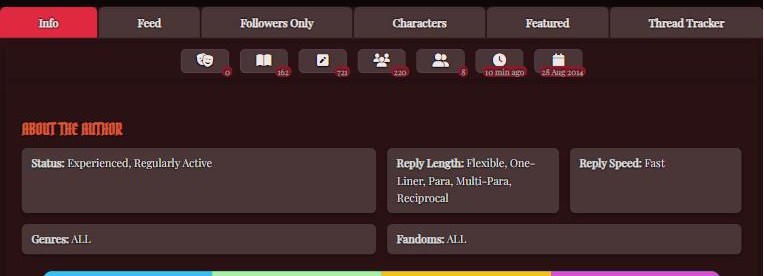
Ocean Depths
Cool, calm and clean. Great for mystery, sea, sci-fi or “quiet competence” characters.
Mini preview: heading = Accent 2, link = Accent 1, Info tab = Accent 1 with Text Color text, New Post button = blend of Accent 2 and Accent 1 with Text Color text, bubble = Badges + Secondary Text Color, ring = Accent 3.
| Accent 1 | #128ce2 |
|---|---|
| Accent 2 | #1d8ea5 |
| Accent 3 | #ffd54f |
| Background Color 1 | #0b1d2a |
| Background Color 2 | #16384d |
| Text Color | #e8f4f8 |
| Secondary Text Color | #9fb8c4 |
| Badges | #00695c |
| Default Font | Merriweather |
| Default Header Font | Cinzel |
Crimson Noir
Dark, dramatic, a little dangerous. Vampires, villains, noir detectives, gothic romance.
Mini preview: heading = Accent 2, link = Accent 1, Info tab = Accent 1 with Text Color text, New Post button = blend of Accent 2 and Accent 1 with Text Color text, bubble = Badges + Secondary Text Color, ring = Accent 3.
| Accent 1 | #e02941 |
|---|---|
| Accent 2 | #d05739 |
| Accent 3 | #ffcc66 |
| Background Color 1 | #120708 |
| Background Color 2 | #2a1114 |
| Text Color | #f2e6e6 |
| Secondary Text Color | #b59a9a |
| Badges | #8b1a2b |
| Default Font | Playfair Display |
| Default Header Font | Pirata One |
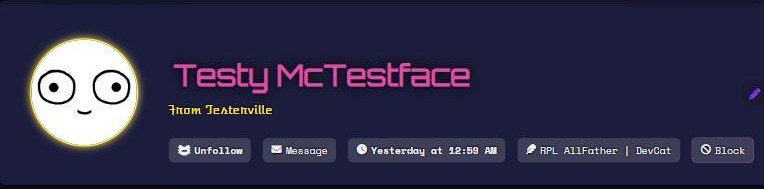
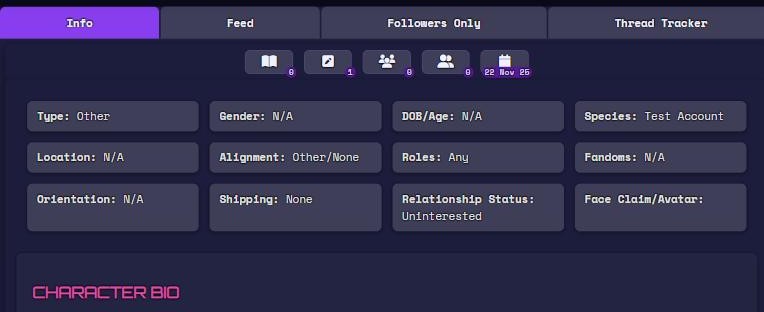
Neon Arcade
Electric and futuristic. Cyberpunk, gamers, hackers, anything with a glowing sign.
Mini preview: heading = Accent 2, link = Accent 1, Info tab = Accent 1 with Text Color text, New Post button = blend of Accent 2 and Accent 1 with Text Color text, bubble = Badges + Secondary Text Color, ring = Accent 3.
| Accent 1 | #883eef |
|---|---|
| Accent 2 | #d651a6 |
| Accent 3 | #fee440 |
| Background Color 1 | #0a0a1a |
| Background Color 2 | #1c1c3c |
| Text Color | #f0f0ff |
| Secondary Text Color | #c9c9f0 |
| Badges | #5a189a |
| Default Font | Space Mono |
| Default Header Font | Orbitron |
Forest Witch
Earthy and warm. Fantasy, folklore, druids, cottagecore, anyone who owns a lot of plants.
Mini preview: heading = Accent 2, link = Accent 1, Info tab = Accent 1 with Text Color text, New Post button = blend of Accent 2 and Accent 1 with Text Color text, bubble = Badges + Secondary Text Color, ring = Accent 3.
| Accent 1 | #519130 |
|---|---|
| Accent 2 | #a37629 |
| Accent 3 | #ff7043 |
| Background Color 1 | #0f1a12 |
| Background Color 2 | #1f3324 |
| Text Color | #e6efe0 |
| Secondary Text Color | #a5b8a0 |
| Badges | #6a1b4d |
| Default Font | Georgia |
| Default Header Font | Almendra |
Midnight & Gold
Regal and elegant. Nobility, heists, old money, ancient libraries.
Mini preview: heading = Accent 2, link = Accent 1, Info tab = Accent 1 with Text Color text, New Post button = blend of Accent 2 and Accent 1 with Text Color text, bubble = Badges + Secondary Text Color, ring = Accent 3.
| Accent 1 | #9c7911 |
|---|---|
| Accent 2 | #c3694b |
| Accent 3 | #e6b422 |
| Background Color 1 | #0d1220 |
| Background Color 2 | #1b2540 |
| Text Color | #f5efe0 |
| Secondary Text Color | #aab0c0 |
| Badges | #7a1f3d |
| Default Font | Georgia |
| Default Header Font | Cinzel |
Rose Dusk
Soft but still dark. Romance, fairy tales, slice of life, gentle-but-sharp characters.
Mini preview: heading = Accent 2, link = Accent 1, Info tab = Accent 1 with Text Color text, New Post button = blend of Accent 2 and Accent 1 with Text Color text, bubble = Badges + Secondary Text Color, ring = Accent 3.
| Accent 1 | #ca4983 |
|---|---|
| Accent 2 | #cf5980 |
| Accent 3 | #ffd180 |
| Background Color 1 | #1a0f1a |
| Background Color 2 | #2e1a2b |
| Text Color | #f6e9f1 |
| Secondary Text Color | #c4a8bb |
| Badges | #6d2a5e |
| Default Font | Quicksand |
| Default Header Font | Satisfy |
Sample font combinations
Pick one font for Default Header Font (names and headings) and one for Default Font (everything else). A good rule: a decorative font for headings and a simple, readable font for the body.
Classic Literary
Default Header Font: Playfair Display
Default Font: Merriweather
Looks like the cover and pages of a novel. Safe and elegant.
Gothic Manor
Default Header Font: Pirata One
Default Font: Playfair Display
Dramatic headings with a calm, readable body. Pairs well with Crimson Noir.
Ancient Tome
Default Header Font: Cinzel
Default Font: Georgia
Carved-in-stone headings; very readable body text.
Fairytale
Default Header Font: Almendra
Default Font: Georgia
Whimsical storybook headings with sturdy text underneath.
Cyber Terminal
Default Header Font: Orbitron
Default Font: Space Mono
Futuristic and techy. Pairs well with Neon Arcade.
Typewriter Noir
Default Header Font: Special Elite
Default Font: Courier New
Case-file and detective-novel feel.
Handwritten Journal
Default Header Font: Caveat
Default Font: Quicksand
Friendly and personal, like notes in a margin.
Clean Modern
Default Header Font: Montserrat
Default Font: Josefin Sans
Crisp, simple, nothing fancy.
Fonts that are best saved for headings
These are eye-catching but tiring to read in long paragraphs, so use them for Default Header Font only. That covers most fonts in the Creative and Expressive, Scene, Punk and Graffiti, Goth and Horror, Pixel and Old Web, Comic Book and Novelty groups, plus a few others such as Rock Salt, Zeyada, Meow Script and Kaushan Script.
The full font list
These are all the fonts in the menus, grouped by mood and shown in their own style. Each name loads its font as you scroll to it. Fonts marked (device font) come from your own computer or phone, so they can look a little different from one device to another.
Story and Novel
- Crimson Text
- EB Garamond
- Libre Baskerville
- Lora
- Merriweather
- Playfair Display
Easy Reading
- Atkinson Hyperlegible
- Faculty Glyphic
- Josefin Sans
- Lexend
- Montserrat
- Quicksand
Typewriter and Manuscript
- Courier Prime
- Cutive Mono
- Space Mono
- Special Elite
- Xanh Mono
Diary and Handwritten Letters
- Amatic SC
- Architects Daughter
- Caveat
- Coming Soon
- Covered By Your Grace
- Handlee
- Homemade Apple
- Indie Flower
- Kalam
- Nothing You Could Do
- Over the Rainbow
- Rock Salt
- Shadows Into Light Two
- Zeyada
Romance and Formal Script
- Alex Brush
- Dancing Script
- Great Vibes
- Jim Nightshade
- Kaushan Script
- Lobster
- Meow Script
- Pacifico
- Parisienne
- Rouge Script
- Satisfy
- Tangerine
- Yellowtail
Creative and Expressive
- Akronim
- Aladin
- Arbutus
- Atomic Age
- Barriecito
- Barrio
- Emblema One
- Freckle Face
- Fruktur
- Kavoon
- Keania One
- Lily Script One
- Miltonian Tattoo
- Mystery Quest
- Peralta
- Protest Guerrilla
- Protest Riot
- Purple Purse
- Ribeye
- Ribeye Marrow
- Risque
- Rubik Marker Hatch
- Rubik Moonrocks
- Sonsie One
- Spicy Rice
- Trochut
- Vampiro One
- Vast Shadow
Cute and Bubbly
- Bubblegum Sans
- Chewy
- Chicle
- DynaPuff
- Love Ya Like A Sister
Scene, Punk and Graffiti
- Finger Paint
- Knewave
- Lacquer
- Permanent Marker
- Piedra
- Protest Revolution
- Rubik Glitch
- Rubik Vinyl
- Rubik Wet Paint
- Sedgwick Ave Display
- Slackey
Goth and Horror
- Butcherman
- Creepster
- Eater
- Griffy
- Jolly Lodger
- Metal Mania
- New Rocker
- Nosifer
Blackletter and Medieval
- Germania One
- Grenze Gotisch
- IM Fell English SC
- Manufacturing Consent
- MedievalSharp
- Pirata One
- Texturina
- Uncial Antiqua
Fantasy and Fairy Tale
- Almendra
- Almendra Display
- Almendra SC
- Amarante
- Aubrey
- Caesar Dressing
- Cinzel
- Cinzel Decorative
- Eagle Lake
- Fondamento
- Luxurious Roman
- Macondo
- Marcellus SC
- Metamorphous
- Quintessential
Sci-Fi and Cyber
- Audiowide
- Exo 2
- Michroma
- Monoton
- Orbitron
- Oxanium
- Share Tech Mono
- Syncopate
- Tilt Neon
- Wallpoet
- Zen Dots
Pixel and Old Web
- Bitcount Prop Single
- Jersey 15
- Pixelify Sans
- Press Start 2P
Poster, Stencil and Slab
- Anton
- Crushed
- Holtwood One SC
- Iceberg
- Ranchers
- Stardos Stencil
Vintage and Pulp
- Abril Fatface
- Bahianita
- Bebas Neue
- Limelight
- Oleo Script
- Poiret One
- Righteous
- Shrikhand
- Yesteryear
Wild West and Pirate
- Rye
- Sancreek
- Trade Winds
Comic Book
- Alfa Slab One
- Bangers
- Bungee
- Luckiest Guy
Novelty
- Black Ops One
- Bungee Inline
- Chango
- Oi
- Titan One
Device Fonts
- Arial (device font)
- Courier New (device font)
- Georgia (device font)
- Lucida Console (device font)
- Segoe UI (device font)
- Tahoma (device font)
- Times New Roman (device font)
- Trebuchet MS (device font)
- Verdana (device font)
The site’s own fonts are Quicksand for text and Josefin Sans for headings. Pick those to match the rest of the site, or use the reset button to put back all the default colors and fonts at once.
Undoing changes
Put everything back to the site look
- Open the edit page for that profile (author or character) and scroll to Custom profile colors and fonts.
- Click Reset all to site defaults. The boxes jump back to the site colors and fonts.
- Click Save (Save Changes on the author page, Save character on the character page). The reset is only final once you save.
Reset clears all ten settings for that one profile at once. It does not affect any other profile.
Careful: if you click Reset and then change any color (with the color box or the hex text box) before saving, the reset is cancelled. Save will store the colors you see on the screen instead of clearing everything.
Undo just one thing
Change that one box back (for example, pick the original color or choose the Default Font option) and click Save. The other settings stay as you left them.
Changed your mind before saving?
Leave the page without clicking Save. Nothing is stored, and your profile stays exactly as it was.
Something looks wrong?
I saved but my profile looks the same
- Make sure you edited the right profile. Author settings only change the author profile; each character has its own settings.
- Remember the changes only appear on that profile page (not on your dashboard or in feeds).
- Refresh the profile page, or do a hard refresh (Ctrl+F5 on Windows, Cmd+Shift+R on Mac).
I can’t read my profile
Open the edit page, click Reset all to site defaults, and Save. Then try again changing one setting at a time, or start from one of the sample schemes. The most common cause is a Text Color that is too close to a background color.
I don’t see the Custom Profile Colors and Fonts section
It is a supporter feature, so it only shows for supporter accounts. See Support the Site for details.
Will this change my characters (or my author profile)?
No. Each profile has its own ten settings. Changing one never changes another.
Still stuck?
Use the Help icon in the site footer and tell us which profile (author or character) you were editing.